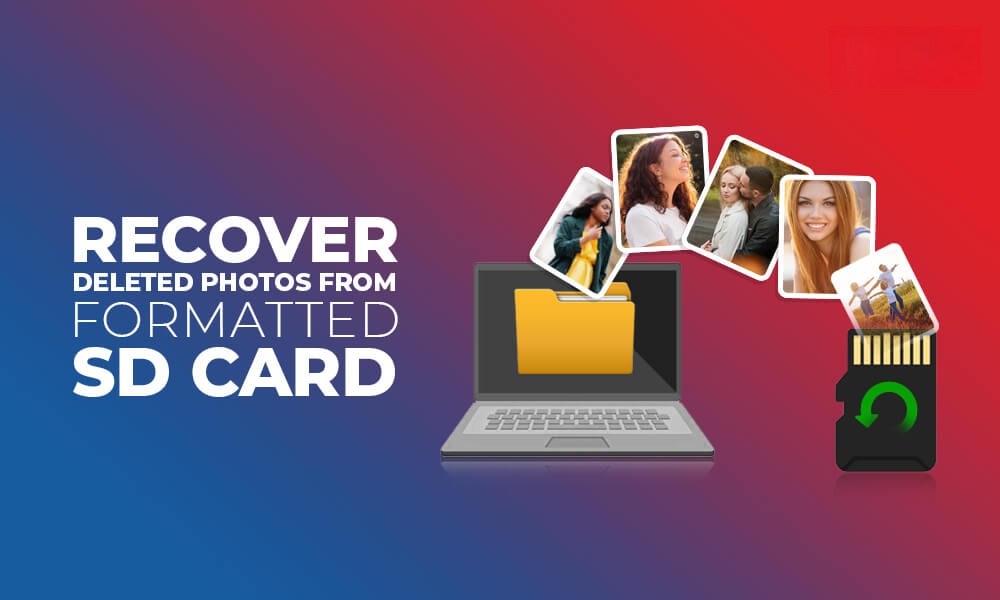
Recover Photos from a Formatted SD Card – DIY Methods
Formatting your SD card helps in removing the stored old data, fixing errors, and improving its performance. However, when you format your SD card, all its stored content, including your precious photos, gets deleted. Recovering lost photos from your formatted SD card can be challenging, but there’s no need to worry!
The good news is that formatting doesn’t immediately erase your data. In many cases, the photos are still recoverable using do-it-yourself (DIY) methods, as long as you act quickly and carefully. In this guide, we’ll explore different DIY methods to recover photos from a formatted SD card. Just go with these workarounds one by one to recover photos from formatted SD cards.
Understanding What Happens During Formatting
Formatting your SD card doesn’t necessarily mean that all your data is wiped out. Instead, it removes the file system structure (like the index or directory) that tells your device where files are stored. The actual photo remains on your card until the space where it was occupied is overwritten by new files.
There are two types of formatting that you can perform on your SD card:
- Quick Format: Deletes file references but leaves data intact—high recovery chances.
- Full Format: May overwrite data (depending on the device/system)—lower recovery chances.
The key point to note is that when you find your SD card is formatted, immediately avoid saving new files on it. Continuous usage may overwrite deleted files and make recovery complex.
Immediate Steps Before SD Card Recovery
Before you try any recovery method to restore photos deleted from formatted SD card, consider the following tips:
- Stop using the SD card: Immediately avoid using your SD card to prevent new data from overwriting recoverable photos.
- Remove the card safely: Carefully remove the SD card from your camera, mobile, or other device to avoid further damage or corruption.
- Avoid installing software on the SD card: Install recovery software on a different location on your computer, not the SD card, to protect remaining data.
Quick Methods to Recover Photos Deleted From Formatted SD Card
Here are some quick and easy photo recovery methods that you can try to recover your photos deleted from a formatted SD card:
Method 01: Recover Photos Using Third-Party Software
Let’s start with the simplest method first! If you are looking for a simple and direct approach to restore your lost photos, try third-party photo recovery software such as Stellar Photo Recovery. This professional software performs a thorough scanning of your storage device, including SD cards, at a deeper level, locating and reconstructing these lost files. It supports a wide range of file formats such as JPG, PNG, RAW, and more, making it ideal for photographers.
Key Features of Stellar Photo Recovery Software:
- Not only photos, the Stellar Photo Recovery software also supports recovery of deleted audio and video files of various file formats.
- It supports recovery of multimedia files deleted due to accidental deletion, formatting, system error, human error, and many other reasons.
- You can also preview the recovered files before saving them on your device.
- The software supports recovery of deleted files in three simple steps, i.e., Select, Scan, and Recover.
Here’s how to recover photos from a formatted SD card using this photo recovery software:
Step 1: Download the Stellar Photo Recovery software from its official website on your Windows PC or Mac. Also, connect your SD card to that device using a reliable card reader.
Step 2: From the What to Recover window, choose Photos (or All Data) and click Next to continue.
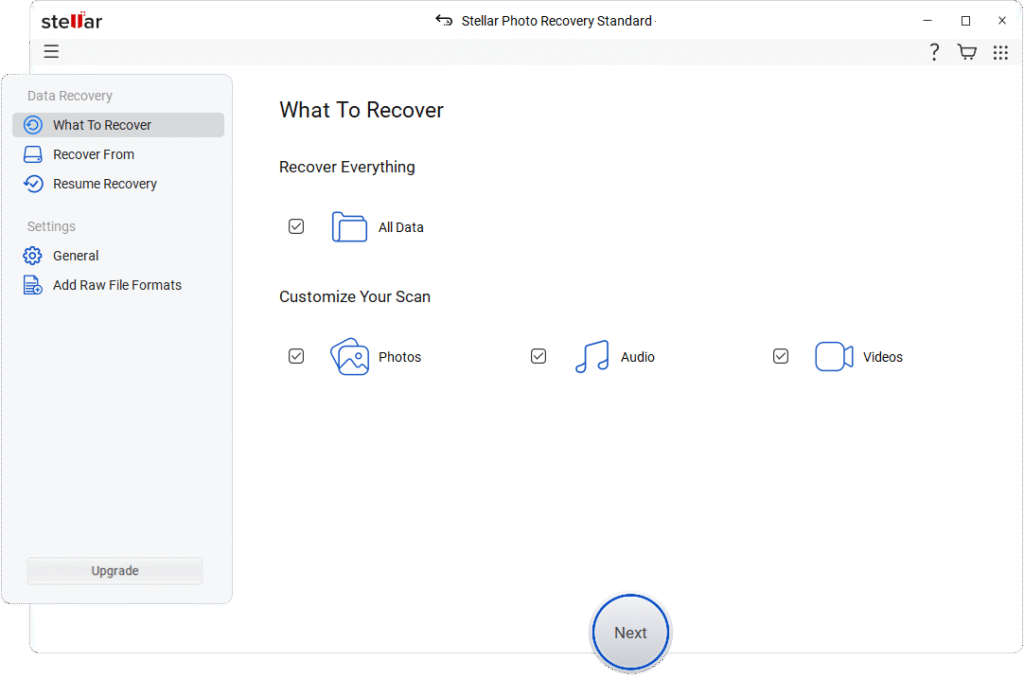
Step 3: Select the storage device where your photo was stored before deletion and tap Scan to initiate the scanning process.
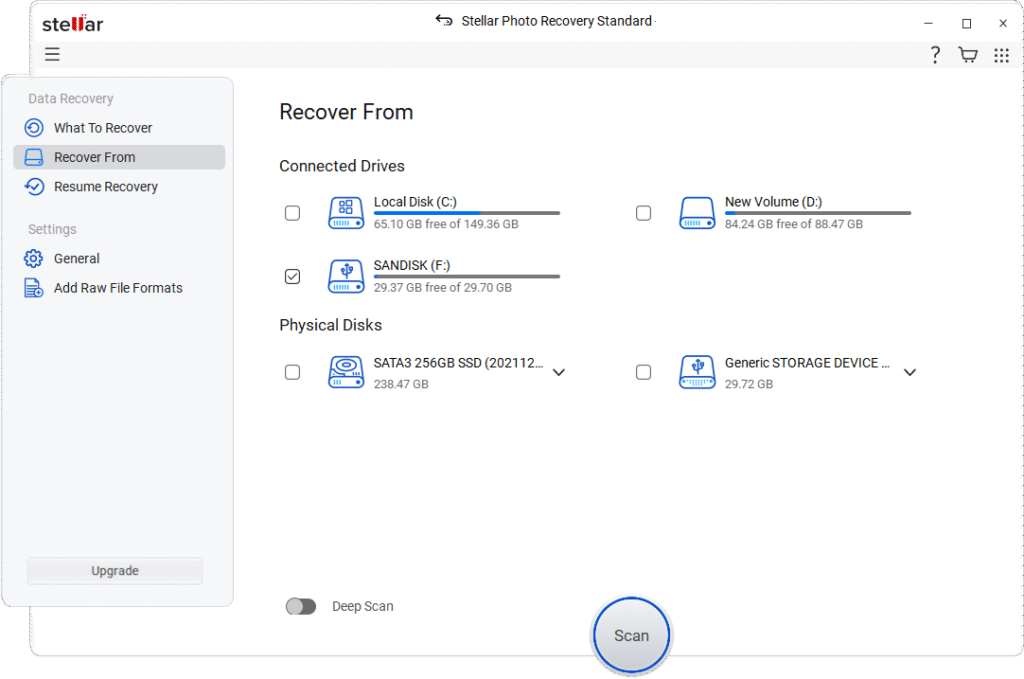
Step 4: Once scanning is complete, preview the recoverable images to ensure they are intact and worth restoring. Click Recover to save recovered photos back to your device.
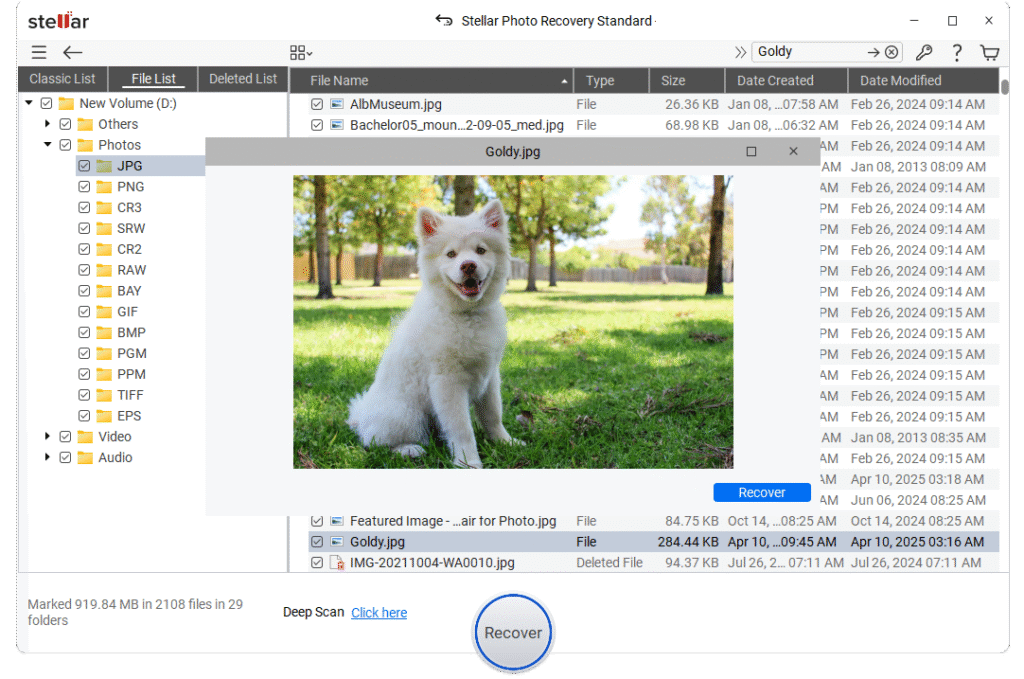
Note: Choose a safe location on your computer or another external drive to save the recovered photos —never save them back to the same SD card.
Method 02: Use Command Prompt to Recover Photos
If you don’t want to use any additional software, you can use Windows’ built-in Command Prompt utility to restore your photos. This method works best if the issue is related to file system corruption rather than full formatting. All you have to do is:
- Firstly, insert the formatted SD card into your Windows PC.
- Launch Command Prompt with administrative privileges.
- Type the command: chkdsk X: /f (replace “X” with your SD card drive letter).
- Press Enter and wait till the process is complete.
This command checks for errors and may restore lost file structures.
Method 03: Recover Photos Using Previous Backups
If you are good at maintaining regular backups of your files and folders, then you can check these backups for deleted photos from a formatted SD card. In such a case, you can use cloud backups such as Google Photos, iCloud, and OneDrive or in-built backup utilities to restore deleted photos.
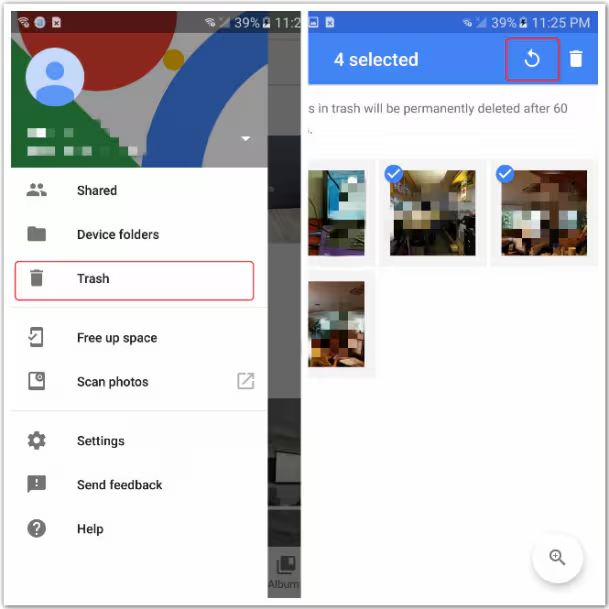
To recover your photos using cloud backups:
- Open your cloud backup app (like Google Photos or iCloud) and log in to your account.
- Go to the “Photos” or “Library” section, then click the “Trash” or “Recently Deleted” folder.
- Locate and select the photos you want to restore.
- Tap “Restore” to recover selected photos to your gallery.
Preventing Future Photo Loss Issues
Once you’ve recovered your photos (or even if you haven’t), consider the below steps to avoid future photo loss instances:
- Maintain Regular Backups: Regularly back up your photos to the cloud or external storage so you always have a copy in case of accidental loss or formatting.
- Use Reliable SD Cards: Use reliable, high-quality SD cards to reduce the chances of corruption, failure, or unexpected data loss during use.
- Safely Eject Devices: Always safely eject your SD card before removing it to prevent file system errors or data corruption.
- Enable Auto Backup: Enable automatic backups on your devices so photos are saved instantly without relying on manual backup habits.
Wrapping Up
Recovering lost photos, especially from a formatted SD card, may seem a challenging task – but don’t worry. You can start with DIY methods like command-line tools and previously created cloud backups. If these manual methods fail, you can try third-party photo recovery software such as Stellar Photo Recovery. While not every SD card recovery attempt succeeds, following the right steps significantly increases your chances. With the right tools, patience, and care, you can often reconstruct what seemed lost.
Frequently Asked Questions – FAQs
Can I recover photos after formatting an SD card?
Yes, photos can often be recovered after formatting because the data is not immediately erased; only the file system is reset.
Is third-party photo recovery software safe?
Yes, tools like Stellar Photo Recovery are 100% safe for recovering your deleted files, such as photos, videos, and audio files, from various internal or external storage devices.
How can I prevent losing photos in the future?
You can consider preventive measures such as maintaining regular backups, proper handling of SD cards, and using reliable storage devices to significantly reduce the risk of data loss.